Website Building
Another important part of my project includes building a website, as per the brief this cannot be done in a CMS (content management system) so I have opted to use Adobe Dream Weaver, as most of my work revolves around working with the Adobe packages anyway and it is by far one of the more stable web design packages and Industry standard.
As of writing this there have been several incarnations of the Archon eSports website, the most up to date version can be found here www.archonesports.co.uk.
Hosting
Before you start building your website it is important to buy your domain name. This should be done quickly so the name that you want doesn’t become occupied. Buying the domain name itself is pretty cheap but buying server space so you can do anything with it is another matter. There are several web hosting services that I looked at when starting my website but I eventually settled on 123reg.com as they seem to give the best service for the cost.
Web hosts give you an array of options for your new site, such as templates so you do not have to make the site yourself, security options, email options, and FTP options (file Transfer protocol)
FTP
File Transfer Protocol is used for uploading amounts of data onto certain places onto a certain server, in this case updating a website. While most hosts have the ability to open a FTP through a browser it is sometimes preferable to use a FTP Client such as File Zilla. These clients will let you upload several files at once into various places.
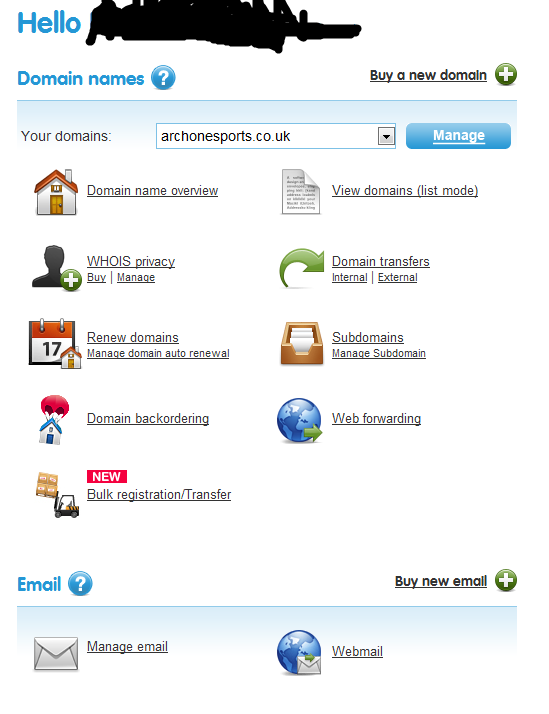
This is what the control panel of my hosting site looks like. As can be seen in the screen shot above, there are several options and scrolling down the page there are even more. The important one for this section are the domain transfers, as this is the option that allows you to upload your website to your domain. Manage email is very important aswell as this allows you to set up your email address with the website as the extension, like aedavo@archonesports.co.uk.
I have used this method to try and upload the website but it has proved to be cumbersome, only letting me upload one file at once and even then it is very slow, as a result for this is have turned to using Filezilla.
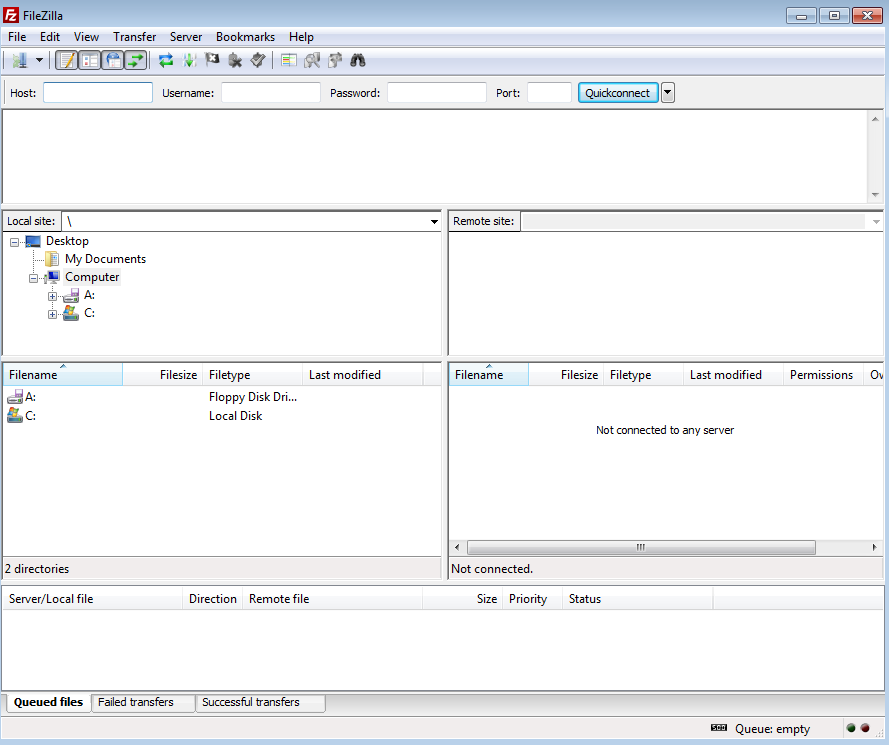
Filezilla is a Freeware FTP client, meaning that you can use it to connect to a server of your liking and upload whatever files you have to. Note that the server details are missing for security purposes. The windows on the left of the client represent your computer and the files that you have on it and the windows on the right represent the server that you are connected to and the files that it has on it. All you need to connect to the server from your ftp client is your account user name and password with the hosting company and the IP address and port number of the server.
